

Check the public name
Open the profile or description of the desired chat, and copy the name with the @ symbol. The displayed name may be the same for multiple people. Check the public name against the current profile, especially if you found it in old messages.
- Open ScanID GIVO in Telegram and select a language after launch.
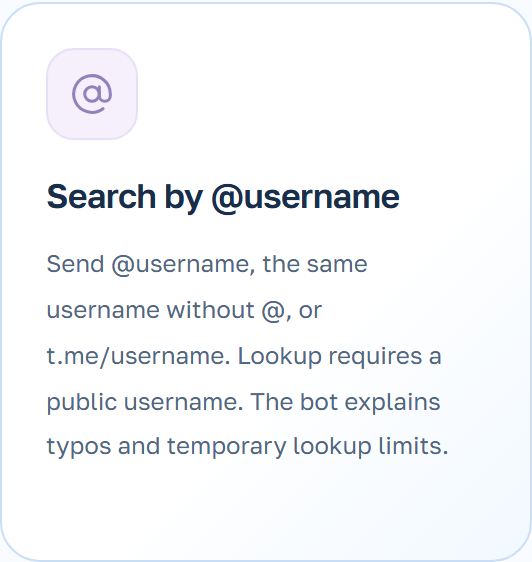
- Send @username, or use the object selection in the bot menu if it suits your case.

Copy the numerical ID completely
Please match the name and object type in your response. For setting up integration that requires a numeric ID, use the value from the bot’s reply. Ensure that all digits and the minus sign (if present) are preserved during copying.
If you are entering the ID into a table, set the cell to text format before inserting it. Compare the value in the cell with the answer ScanID before using it in the settings.
What to check if the name is not found
Make sure you use the current @username, not the name that appears at the top of the chat. The name might have changed, or Telegram might not have given the bot access to the object. In that case, ask the person to send their current public username.
Searching for the ID does not give access to a phone number, a closed account, or a hidden author. If you need the chat ID, make sure you are looking for that specific chat, not the author of the message within it.